> For the complete documentation index, see [llms.txt](https://docs.datasentinel.io/manual/llms.txt). Markdown versions of documentation pages are available by appending `.md` to page URLs; this page is available as [Markdown](https://docs.datasentinel.io/manual/ai-connector/server-setup/how-authentication-works.md).
# How authentication works
What happens when an assistant connects to the Datasentinel MCP server: you sign in once in your browser and the assistant keeps the session alive; scripts use a user token instead.
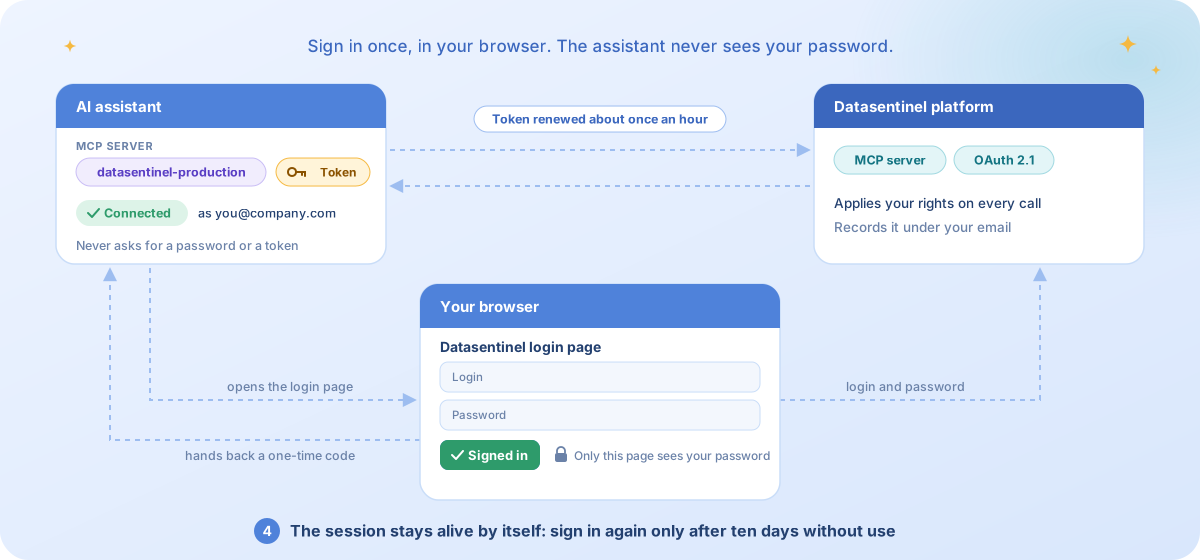
The Datasentinel MCP server is protected by **OAuth 2.1**, the authorization standard every MCP-capable assistant implements. You never paste a token and you never type a password into a conversation. You sign in once, in your browser, on the Datasentinel login page, and the assistant takes it from there.
The sign-in, from the first call to a session that renews itself.
## What you see
{% stepper %}
{% step %}
#### The assistant asks to authenticate
The first time an assistant uses the Datasentinel MCP server, the server tells it that authentication is needed. Each assistant shows this in its own way: an **Authenticate** action in Claude Code's `/mcp` panel, a **Connect** button in the Claude connector settings, a sign-in card in Copilot, a prompt next to the server in an IDE.
{% endstep %}
{% step %}
#### You sign in on the Datasentinel login page
The assistant opens the Datasentinel login page in your browser. The page names the assistant that is asking and where you will be sent back afterwards. Sign in with your **platform login and password**, the same ones you use for the Datasentinel web interface. Your password goes to that page only: the assistant never sees it.
{% endstep %}
{% step %}
#### You are back in the assistant
The browser hands the assistant back a code, the assistant exchanges it for a token, and every tool call from then on is made **as you**. Your instances, your communication style (TECHNICAL or PLAIN) and your real-time access follow from the account you signed in with. Run `whoami` at any time to see who the session is connected as.
{% endstep %}
{% step %}
#### The session stays alive by itself
The assistant renews its token silently, about once an hour, as long as you keep using the server. You are asked to sign in again only after **ten days without using the server**, or when an administrator revokes the session.
{% endstep %}
{% endstepper %}
{% hint style="info" %}
**Never asked in the conversation.** The assistant never asks you for a token, a login or a password. If it reports that the server needs authentication, run `whoami`: it explains how to sign in for the assistant you are using.
{% endhint %}
## Behind the scenes
* The assistant registers itself with the platform once, then identifies itself on every sign-in.
* The **access token** is a Datasentinel user token that lives one hour; it carries your email, so the platform applies your rights to every call.
* The **refresh token** lets the assistant renew the access token without you. It lives ten days and is renewed at every refresh, so an assistant you use at least every ten days never sends you back to the login page.
* Every sign-in, renewal and refusal is recorded in the platform's MCP log under your email.
## What it looks like in each assistant
| Assistant | Where the sign-in starts |
| --------------------------------------------- | ------------------------------------------------------------------------------------------------------- |
| Claude Code | `/mcp`, select the Datasentinel server, **Authenticate** |
| Claude desktop app, Claude web, Claude mobile | Settings → Connectors → **Connect** (or **Reconnect**) on the Datasentinel connector |
| Codex CLI, Copilot CLI, other CLIs | The client's own MCP login command or the sign-in prompt shown next to the server |
| Mistral Vibe CLI | `vibe mcp add` starts it; later, `/mcp login ` inside Vibe |
| Google Antigravity CLI | `/mcp`, select the server, **Authenticate**; paste back the code shown after the sign-in |
| Deep Agents Code, Hermes Agent | `dcode mcp login ` or `hermes mcp login `; both accept the redirect address pasted back |
| Visual Studio Code | The authentication prompt when the server starts, after the trust prompt |
| Cursor | **Needs login** next to the server on the MCP page |
| ChatGPT | The sign-in step of the custom app |
| Microsoft 365 Copilot, Copilot Studio | The **Sign in** card shown in the chat |
| Google Gemini app | The sign-in step when you add the custom app in the Gemini web app |
Each configuration guide in this section shows the exact step for its assistant.
## Sign in from a server without a browser
A CLI running on a server over SSH cannot open a browser, but the sign-in still works: the browser runs on your laptop, and only the way back to the assistant needs help.
{% tabs %}
{% tab title="Paste the link back (Claude Code, Codex CLI)" %}
Start the sign-in in the mode that prints the link instead of opening a browser:
```bash
claude mcp login datasentinel-production --no-browser
# or, with Codex CLI
codex mcp login datasentinel-production --no-browser
```
1. The assistant prints the sign-in URL.
2. Open it in the browser of your laptop and sign in.
3. The browser is sent to a `localhost` address that fails to load on the laptop. That is expected: copy the **complete URL** from the address bar.
4. Paste it at the prompt in the terminal. The assistant completes the sign-in and stores the session on the server.
The link is valid ten minutes, so do the copy and paste in one go. From then on every run of the assistant on that server reuses the session.
{% endtab %}
{% tab title="Forward the port over SSH (any assistant)" %}
Most other CLIs, and every Python agent, only know how to wait for the browser on `localhost`. Make the laptop's `localhost` reach the server with a port forward, using a fixed port on both sides:
```bash
# on the laptop
ssh -L 8080:localhost:8080 @
# on the server, in that SSH session (Claude Code shown; other clients have their own callback-port option)
claude mcp add --transport http --callback-port 8080 datasentinel-production https:///mcp
claude mcp login datasentinel-production
```
The assistant prints the sign-in URL; open it in the laptop's browser and sign in. The way back to `localhost:8080` travels through the tunnel to the assistant on the server, with nothing to paste.
{% endtab %}
{% endtabs %}
{% hint style="warning" %}
The assistant's own HTTP client verifies the platform certificate on the server. With a self-signed certificate, install the certificate authority on the server too; see [Self-signed and untrusted TLS certificates](/manual/ai-connector/troubleshooting/ssl-certificates.md).
{% endhint %}
## Scripts and scheduled jobs
A scheduled job, a Python agent or a CI pipeline has nobody to sign in. For them, use a [user token](https://app.gitbook.com/o/DaDQkGCM7r2TghFSBFLQ/s/yE16Xb3IemPxJWydtPOj/implementation/platform-usage/api-reference/access-token) instead of the sign-in: the same token the platform API uses, obtained in one of two ways and valid **24 hours**.
* **From the web interface**: the button in the top right corner of the Datasentinel interface copies your user token.
* **From the API**, with your platform login and password:
```bash
curl -s -u -X POST https:///ds-api/user-token
```
The response is `{ "user-token": "" }`. Configure that value in the client as an `Authorization: Bearer ` header, always through an environment variable or a secret store, never as a literal in a file. The MCP server accepts it exactly like a token obtained by signing in: the job runs with your rights, and its calls are recorded under your email.
A user token is not renewed by the server: after 24 hours the calls answer 401 and a fresh token is needed. The Developers section provides a script that keeps a valid token cached for scheduled runs, and shows a Python agent that uses it.
A scheduled run does not always need a token. A CLI assistant started by cron on a host where you already signed in reuses that session, and so does an assistant's own scheduler. See [Run recurring analyses](/manual/ai-connector/analyze-and-tune-workloads/recurring-analyses.md#authentication-in-a-scheduled-run).
## Security notes
* Your login and password go to the Datasentinel login page only, served by your platform. No assistant, and no assistant vendor, ever sees them.
* An assistant holds a token that identifies **you**: your instances, your communication style and your real-time access apply to everything it does, and the platform's audit trail records it under your email.
* Every analysis stays read-only and transits through the platform. No PostgreSQL credential is ever known to an assistant.
* An administrator can end a session at any time (see [Manage assistant sessions](/manual/ai-connector/server-setup/manage-assistant-sessions.md)), and deleting a platform user takes effect immediately.
---
# Agent Instructions
This documentation is published with GitBook. GitBook is the documentation platform designed so that both humans and AI agents can read, navigate, and reason over technical content effectively. Learn more at gitbook.com.
## Querying This Documentation
If you need additional information that is not directly available in this page, you can query the documentation by asking a question.
Perform an HTTP GET request on the following URL with the `ask` and `goal` query parameters:
```
GET https://docs.datasentinel.io/manual/ai-connector/server-setup/how-authentication-works.md?ask=&goal=
```
`ask` is the immediate question: it should be specific, self-contained, and written in natural language.
`goal` is what the user is ultimately trying to achieve, the reason they need the answer. Sharing it helps GitBook give you a better, more relevant answer. A goal is most helpful when it describes the outcome the user wants rather than restating the question. For example, with `ask=how do I create an API token`, a goal like `automate deployments from our CI pipeline` lets GitBook tailor the answer to that use case.
The response will contain a direct answer to the question and relevant excerpts and sources from the documentation.
Use this mechanism when the answer is not explicitly present in the current page, you need clarification or additional context, or you want to retrieve related documentation sections.