> For the complete documentation index, see [llms.txt](https://docs.datasentinel.io/manual/llms.txt). Markdown versions of documentation pages are available by appending `.md` to page URLs; this page is available as [Markdown](https://docs.datasentinel.io/manual/ai-connector/use-the-assistant/whoami-command.md).
# Check your session with whoami
The whoami command shows your session at a glance: who you are connected as, your rights, the token, the Skill copy in use, and the session settings.
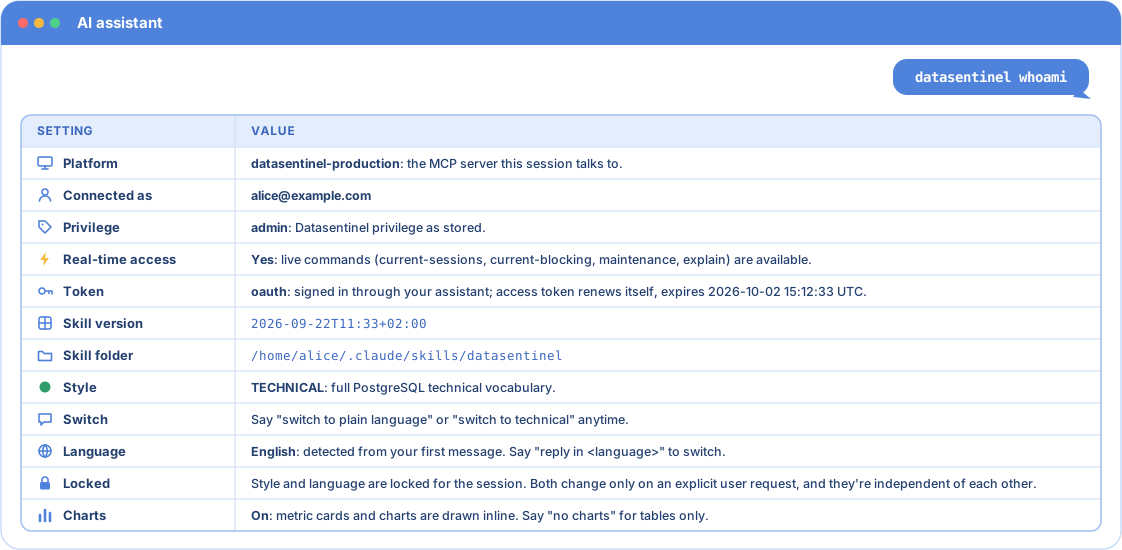
`whoami` answers one question: what is this session connected to, as whom, and how is it set up? The assistant replies with a single table: the platform, your identity and rights, the token, the copy of the Skill that answered, and the communication settings of the session.
It is the first thing to run when something looks off: an instance you expected is missing, a live command is refused, the answers are in the wrong style, or you are not sure which platform you are on.
The answer to whoami, with example values.
## Run it
| Form | Example |
| -------------------------------------------------------- | ------------------------------------------------------------------------------------------------------------------------------------------------------------ |
| Slash command, in assistants that expose Skills that way | `/datasentinel whoami` |
| In the prompt, in any assistant | `datasentinel whoami` |
| Alias | `datasentinel token` |
| Plain language | "Who am I connected as?", "What's my profile?", "Which style are you using?", "Show my session settings", "Is my token valid?", "When does my token expire?" |
See the [Skill commands reference](/manual/ai-connector/use-the-assistant/skill-commands.md#how-to-run-a-command) for how commands are run in each assistant.
## What it shows
The table has twelve rows, always in this order. The first seven describe the connection, the last five the session settings.
| Row | What it tells you |
| -------------------- | ---------------------------------------------------------------------------------------------------------------------------------------------- |
| **Platform** | The `datasentinel-*` MCP server this session talks to. With several platforms configured, it is the one in use. |
| **Connected as** | The email of the account the session runs as, and nothing else. Every tool call is made as this user. |
| **Privilege** | Your Datasentinel privilege, as stored on the platform: `admin`, `read write` or `read`. |
| **Real-time access** | **Yes** when your account can run the live commands (`current-sessions`, `current-blocking`, `maintenance`, `explain`). **No** when it cannot. |
| **Token** | How the session is authenticated, and when the token expires. See [The Token row](#the-token-row). |
| **Skill version** | The timestamp of the Skill copy that answered, the same value as the `version` command. |
| **Skill folder** | The folder of that copy, as the assistant reports it. |
| **Style** | **TECHNICAL** or **PLAIN**: the communication style of the session. |
| **Switch** | The phrases that change the style: "switch to plain language", "switch to technical". |
| **Language** | The language the assistant answers in, detected from your first message, and how to change it. |
| **Locked** | A reminder that style and language stay fixed for the session, until you ask for a change. |
| **Charts** | **On** when the assistant draws metric cards and charts inline, **Off** when it uses tables instead. |
The values come from your own session. Those in the illustration above are examples.
### The Token row
The row names the kind of token the connection uses.
| Kind | Meaning | Expiry shown |
| --------- | --------------------------------------------------------------------- | -------------------------------------------------------- |
| `oauth` | You signed in through your assistant, on the Datasentinel login page. | Informational: the assistant renews the token by itself. |
| `access` | A long-lived token configured by an administrator. | The real deadline. |
| `session` | A token obtained from a platform login. | The real deadline. |
An interactive assistant normally shows `oauth`. See [How authentication works](/manual/ai-connector/server-setup/how-authentication-works.md).
### The Skill version and Skill folder rows
A Skill can be installed in several places at once: a personal folder, a project folder, a copy uploaded to the assistant. These two rows tell you which copy answered, and how recent it is.
* A path under `/mnt/skills/` is a copy uploaded to the assistant, marked *(uploaded copy)*. It is not a folder on your machine.
* When the assistant does not reveal the path, the row reads *not exposed by this assistant*.
* To know whether the copy is current, compare the version with the published one, as described under [Connection and setup](/manual/ai-connector/use-the-assistant/skill-commands.md#connection-and-setup).
## When it helps
| What you see | Row to check |
| ------------------------------------------------------------------- | ---------------------------------------------------------------------------------------------------------------------------------------------------------------------------------------------- |
| An instance you expected is missing from the list | **Connected as** and **Privilege**: the session sees what that account is allowed to see. |
| "Live commands are not available", or a live command is not offered | **Real-time access**: it requires the [Live360](https://app.gitbook.com/o/DaDQkGCM7r2TghFSBFLQ/s/yE16Xb3IemPxJWydtPOj/features/key-features/live360) right on your account. |
| Answers about the wrong platform | **Platform**: run `whoami` again after you switch platform. See [Work with several platforms](/manual/ai-connector/analyze-and-tune-workloads/work-with-several-platforms.md). |
| A script starts failing after a day | **Token**: a kind other than `oauth` has a real expiry. See [Run recurring analyses](/manual/ai-connector/analyze-and-tune-workloads/recurring-analyses.md#authentication-in-a-scheduled-run). |
| A command described in this documentation is unknown | **Skill version** and **Skill folder**: an old copy may be the one in use. |
| Answers are too technical, or not technical enough | **Style**, then the phrases of the **Switch** row. |
| Tables where you expected charts | **Charts**: say "use charts" if your assistant can draw them. |
## Not signed in yet
`whoami` needs a signed-in connection. When the connection is not signed in, the assistant does not show the table: it explains how to sign in with the assistant you are using, and runs the check again once you say it is done.
The same happens when you ask how to connect: "How do I sign in?", "How do I authenticate?". If the connection already works, the assistant shows the instructions and tells you so.
The assistant never asks for a login, a password or a token in the conversation. See [Sign-in problems](/manual/ai-connector/troubleshooting/sign-in-problems.md) if the sign-in does not complete.
## Good to know
* **One check, no analysis.** `whoami` makes one identity call to the platform, once per session, and reuses the result afterwards. It queries no instance.
* **It changes nothing.** It never resets the style, the language or the chart mode, and it does not end with a menu of next steps: the table is the whole answer.
* **Your language.** The table is translated into the language of the session. Only the style names, TECHNICAL and PLAIN, stay in English.
* **An assumed style.** When the platform could not return your role, the assistant uses PLAIN and marks the Style row as assumed. Say "switch to technical" to get the technical style.
* **Several platforms.** Each platform has its own sign-in, so the identity rows describe the platform in use only.
## The short version, at the start of a session
You do not have to run `whoami` to see your settings. The first answer that carries platform data opens with the last five rows of the table: Style, Switch, Language, Locked and Charts. The assistant shows them once per session, and again after a style switch.
`whoami` is the full version, on demand, with the connection rows on top.
{% content-ref url="/pages/wO1eq0rTY2OOkwRpABfh" %}
[Skill commands reference](/manual/ai-connector/use-the-assistant/skill-commands.md)
{% endcontent-ref %}
{% content-ref url="/pages/Wcf4y7Gfya8ctaLWy1CQ" %}
[How authentication works](/manual/ai-connector/server-setup/how-authentication-works.md)
{% endcontent-ref %}
---
# Agent Instructions
This documentation is published with GitBook. GitBook is the documentation platform designed so that both humans and AI agents can read, navigate, and reason over technical content effectively. Learn more at gitbook.com.
## Querying This Documentation
If you need additional information that is not directly available in this page, you can query the documentation by asking a question.
Perform an HTTP GET request on the following URL with the `ask` and `goal` query parameters:
```
GET https://docs.datasentinel.io/manual/ai-connector/use-the-assistant/whoami-command.md?ask=&goal=
```
`ask` is the immediate question: it should be specific, self-contained, and written in natural language.
`goal` is what the user is ultimately trying to achieve, the reason they need the answer. Sharing it helps GitBook give you a better, more relevant answer. A goal is most helpful when it describes the outcome the user wants rather than restating the question. For example, with `ask=how do I create an API token`, a goal like `automate deployments from our CI pipeline` lets GitBook tailor the answer to that use case.
The response will contain a direct answer to the question and relevant excerpts and sources from the documentation.
Use this mechanism when the answer is not explicitly present in the current page, you need clarification or additional context, or you want to retrieve related documentation sections.